Using Joplin to sync notes on Linux

In my last post I talked about being forced to drop Sync.com as my cloud file synchronisation solution when I moved to Linux because Sync doesn’t have a native Linux client. (I now use the excellent, cross-platform Tresorit, fyi.)

You know what I didn’t have to drop when I moved to Linux because it does have an excellent Linux client? Joplin, my open-source, cloud-synchronised note taking solution.

Screenshot of the Joplin website home page. A large graphic at the top of the page explains that "Joplin is an open source note-taking app."

The tools I use to stay in sync

These are all the tools I use to keep my thoughts, notes, lists, tasks, and bookmarks synchronised across my four primary personal devices (desktop computer, laptop computer, tablet, and smartphone) and, when needed, my two work devices (laptop computer and work smartphone).

Long, secure notes: Joplin

The primary tool I use to capture all my thinking, planning, researching, documenting, and cataloguing is Joplin (created and maintained by London-based developer Laurent Cozic).

I love Joplin because:

  • it’s free (though I support its development via a Patreon membership),

  • it’s open source (at least the desktop client is),

  • it’s cross-platform (yay Linux client!),

  • it lets you use a range of back-end cloud storage options to sync your notes (otherwise at heart it’s an offline-first note-taking app),

  • it lets you use Markdown to structure you text, and

  • it provides end-to-end encryption (E2EE) for all you notes.

Unlike a lot of other, and perhaps, more popular note-taking tools – the commercial kind that you have to pay for – Joplin isn’t trying to be the everything-tool for everyone. It does a few things, and it does those well. It is relatively uncomplicated and its apps are all lightweight.

I especially like that you can choose among a bunch of cloud storage options to store and sync your notes in the back end. I already have 1TB of space on OneDrive (through our Microsoft 365 Family subscription) so I use that to sync my notes. And since all my notes are end-to-end encrypted, I have no security or privacy concerns with using OneDrive’s cloud storage for this purpose.

(Joplin has since launched Joplin Cloud to provide its own back-end cloud note-syncing functionality. This back-end synchronisation server is the only part of Joplin that’s not open-source.)

Short, casual notes: Google Keep

I use Google Keep because it consistently has the fastest and most reliable note synchronisation. Also, its lightweight apps works brilliantly on Android, iOS, and the web.

Content in Keep is (surprisingly for Google) private, but I don’t save anything secret here because your notes can still be subpoenaed.

Kanban board: KanbanFlow

KanbanFlow is a simple, lightweight kanban board / project management tool from CodeKick out of Gothenburg, Sweden.

I don’t use this for project management though, I use it to maintain the lists of books, TV series, and movies I want to watch next. (I’ve written about this use case before, if you’re interested.)

If I did need a project management tool though, I’d switch to the paid version of KanbanFlow.

(Trello used to be my preferred kanban tool but its developers kept adding features I didn’t want or need, to the point that it was no longer a fun, easy, lightweight web or smartphone app to use. It got even more complicated to use after Atlassian purchased it and added it to their suite of team-oriented products.)

Screenshot of the KanbanFlow website home page. A heading at the top of the page reads, "Lean project management. Simplified." and, "Boost your personal or team productivity".

Shopping and other lists: Microsoft To Do

Nadia and I have tried a bunch of list-making apps over the years, but Microsoft’s To Do is the simplest, most convenient, and most reliable of the lot.

(Our Family subscription to Microsoft 365 is why this app was even an option for us in the first place, by the way.)

Bookmarks and read-later links: Pinboard

Pinboard is an incredibly simple, very fast, and super efficient, web-based bookmarking tool that lets you bookmark webpages and, importantly, tag them for easy indexing.

It also has an ‘unread’ tag that lets you use this as a place to store all your read-later links. My read-later app of choice used to be the now-defunct Pocket, but I switched to Pinboard a few years ago and never looked back.

(For completeness’ sake I should mention that I use Firefox and Vivaldi browser accounts to sync my day-to-day web bookmarks, browsing history, and browser settings.)

Passwords and TOTP: Bitwarden, Aegis Authenticator

I use the amazing, open-source Bitwarden to generate, store, and sync all my passwords and the fantastic, open-source Aegis Authenticator to generate all my time-based one-time passcodes (TOTP).
Why sync notes in the first place?

Growing up I captured my notes, thoughts, and shopping lists using paper notebooks, notepads, and lined notepaper that I stored and organised in ring binders (complete with dividers and colour-coded tabs).

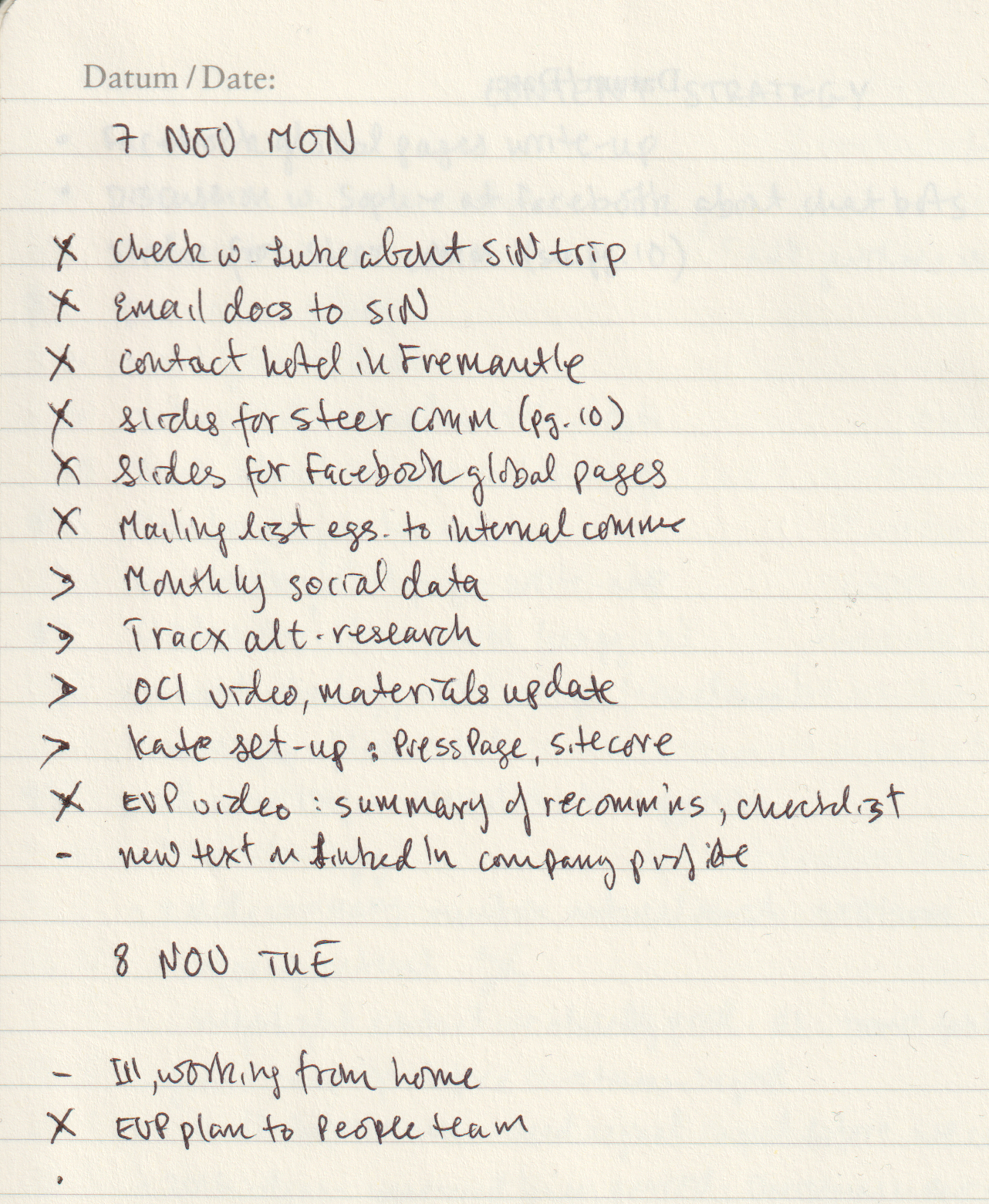
Once I got a job and stopped needing to carry ring binders around, I took notes on nicer notebooks from Moleskine, Leuchtturm 1917, and Field Notes. These paper-based methods saw me through my bachelors degree, masters degree, several jobs, and even my bullet journaling era (like in the scanned page above).

These days its easier to carry only a smartphone in your pocket instead of also carrying a notepad and pen with you everywhere. I’m more digital than most people, so it was inevitable that my note-taking would go all-digital sooner rather than later.

That switch happened in 2010 when I got an Evernote account and moved all my note-taking online. I loved Evernote because I could easily organise, index, and search through my notes. I could also access all of my notes, all of the time, regardless of where I was and which digital device I happened to be using.

The rise and fall of Evernote

Evernote was great in those early days so I signed up to a Premium subscription in 2012. I loved using it for everything from note taking, to cataloguing recipes, to saving blog posts and newspaper articles for later reading,

But as its desktop, web, and smartphone apps became increasingly complicated, bloated, and slow, the less I wanted to use it.

Evernote eventually went down the enshittification route so I dropped it altogether, as did many others.
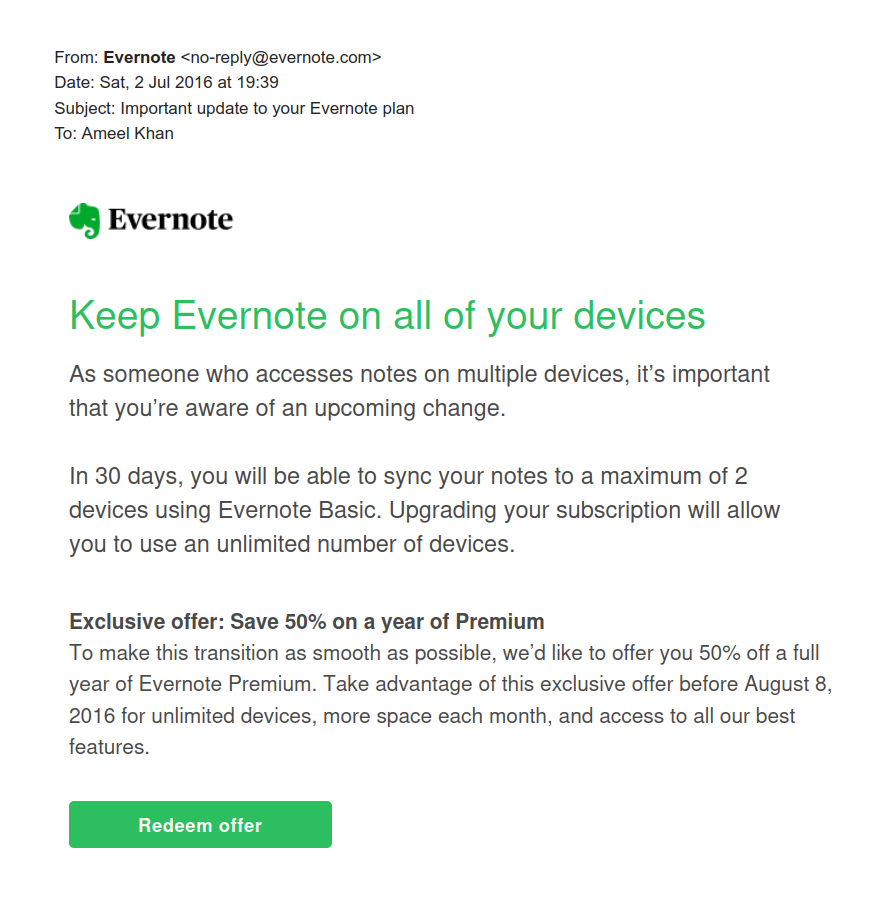
Screenshot of an email from Evernote with the heading, "Keep Evernote on all your devices" that explains, "In 30 days you will be able to sync your notes to a maximum of 2 devices using Evernote Basic".

Short foray into OneNote and Google Docs

I tried Microsoft’s OneNote for a while because I’d bought a tablet PC and OneNote let me take hand-written notes (using the stylus) on its desktop version – like in the screenshot below.

However OneNote didn’t have cloud sync to begin with, and when that functionality did arrive, is wasn’t particularly good, so I stopped using this too. (It was also always slower than Evernote and too unstructured for my liking anyway.)
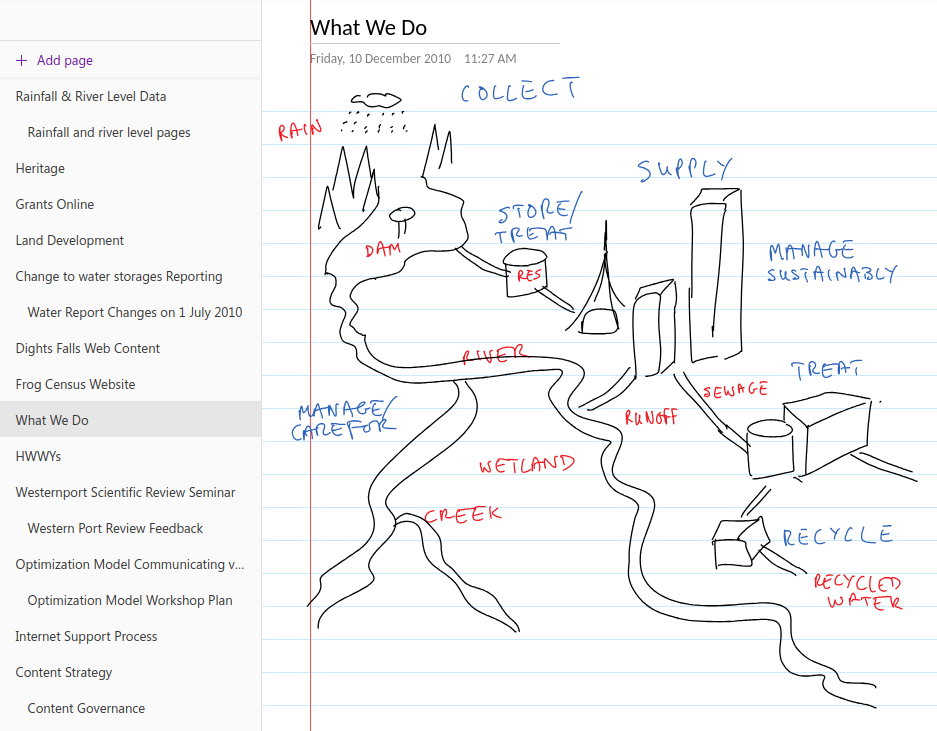
Screenshot from the OneNote app showing a page titled 'What We Do' that contains a hand-drawn diagram showing the water cycle from rain to ocean-runoff.

For a while I also explored taking all my notes in Google Docs and storing everything in a specific note-taking folder. This worked fine for some longer, more complicated notes, but it was never convenient for everything. Google Docs is optimised for document writing, not simple note taking, after all.

Settling down with Joplin and, at work, plain text files

Eventually I found Joplin, fell in love with it, and then migrated all my personal notes over in January 2020. I haven’t found, or even needed to look for, a better alternative since.

Funnily enough, a version of that notes-in-Google-Docs idea is what I ended up adopting for note-taking at work. For several years now I’ve been taking all my work notes in plain old text files that I edit using Notepad++ and store in my work OneDrive.

I use a combination of four text files:

  • tasks.txt, in which I maintain a list of daily, weekly, quarterly, and yearly tasks for myself and my team

  • coordination.txt, in which I jot down my meeting notes

  • projects.txt, in which I write notes about the large projects I’m working on

  • people.txt, into which I take notes during the one-on-one meetings I have with my manager and my direct reports

Every Monday I create new versions of those text files (with Monday’s date in the filename), deleting notes from previous weeks that I no longer need for my current work. This way my active files remain short and focused, and it’s still pretty easy for me to search through earlier weeks’ files if I need to find something older.

(I used to use Trello at work for tracking personal tasks, coordinating team tasks, and for managing team projects, but our IT team “rationalised” our suite of tools and now we’re stuck with Microsoft Planner which is…not great.)
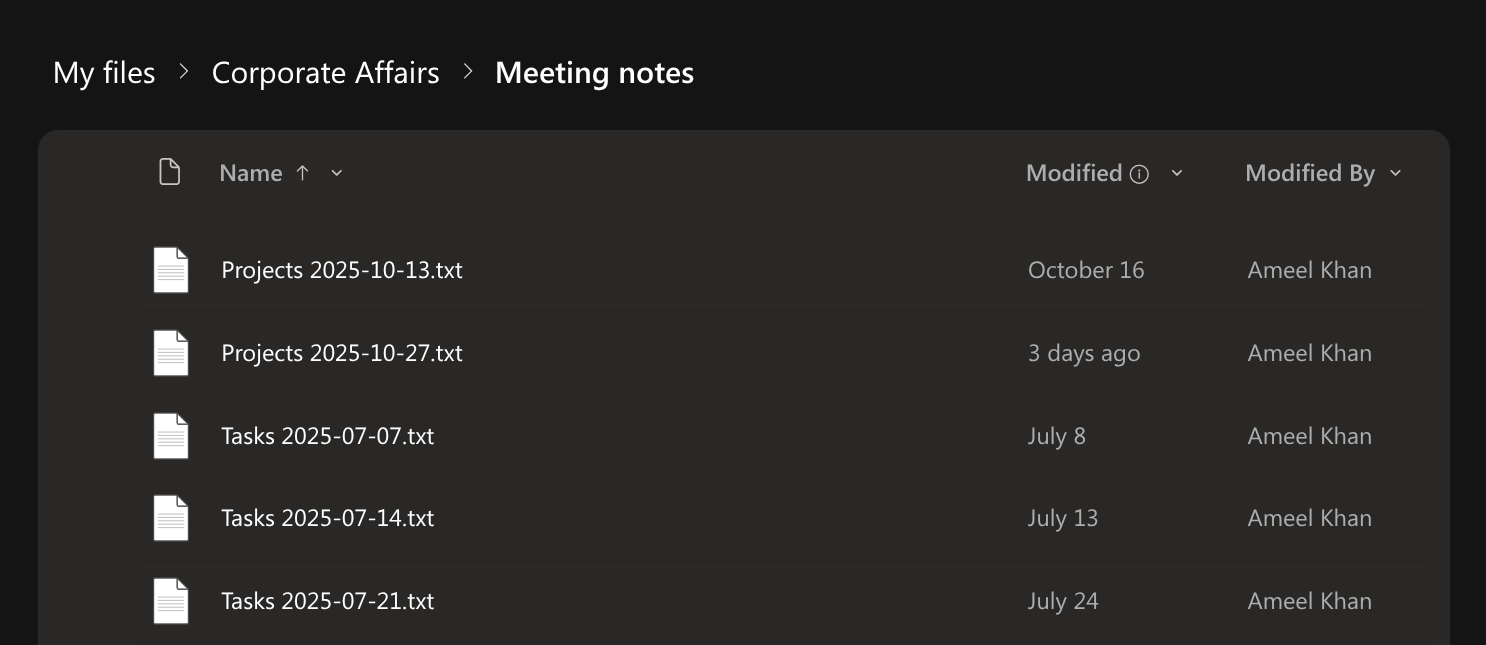
Screenshot from OneDrive showing a list of text files in a folder titled 'Meeting notes'. The text files shown are called Projects and Tasks and they all have a date included in the filename.

Investigating alternatives (or not)

I said I haven’t felt the need to look for Joplin alternatives, and that’s true, but I did play around with Standard Notes for a little while. This is a paid service that I thought might be a good, E2EE alternative to Google Keep. Unfortunately it was slow to sync and its app was glitchy on my phone so I didn’t trial it for long.

And before you ask, I’ve never bothered with tools like Notion, Obsidian, Logseq, and their ilk. Those are all too complicated – they’re a “knowledge base”, a “workspace”, and other fancy descriptors like that – plus I feel paid apps like Notion will eventually go down the enshittification route, just like Evernote did. Notion is already touting itself as the “the AI workspace where teams and AI agents get more done together”. Ugh.

Happy days

To summarise, these are the tools I use:

Oh, and I use plain old text files (using Notepad++) for taking notes at work.

It’s taken me a while to get to where I am and I’m very happy with the set of tools I’ve settled on.

Do you have a primary note-taking tool? If so, what is it? I’d love to know.

Using Tresorit to sync files on Linux

The ability to automatically synchronise files across devices via the internet (and also save a copy in the cloud) hasn’t been around for very long.

Heck, most people didn’t have multiple devices to sync files across till the early 2000s. And when we did get start using multiple devices, we used floppy discs, USB sticks, and external hard drives to move our files around.

Early forays: Dropbox and Google Drive

I started my file sync journey in July 2011 with Dropbox, but I moved quickly to Google Drive just two days after Google Drive launched in April 2012.

I upgraded to a paid Google Drive plan in May 2014, which gave me a massive 100GB of storage space. A few storage-space upgrades later and I’m currently on a 2TB plan.

I need all that space because, since 2004, I’ve been storing all my full-resolution camera and smartphone photos and videos on Google Photos (which is part of Google Drive). [1] And Google Drive is still what I use when I need to share large files with folks other than Nadia.

Screenshot of a 2012 email from Google welcoming the recipient to their new Google Drive account.

Private and secure: Sync.com

While I love Google Drive and its technology, it is not a secure place to store your private, sensitive, or secret files. So since December 2019, I’ve been using the excellent Sync.com to securely store and sync my files across devices.

Sync does end-to-end-encryption (E2EE), meaning your files are encrypted before they leave your computer using a passphrase only you know. That means no one at Sync can decrypt your files. Nor, for that matter, can a government that subpoenas your files or a hacker that steals your files from Sync’s servers.

I love Sync and have been using its paid, 2TB storage-space tier for almost six years. Unfortunately, Sync does not have a Linux client. So with my recent switch to MX Linux on my desktop, I needed to find a new, cross-platform cloud sync and storage provider.

Screenshot of the Sync.com website home page. A large graphic at the top of the page has the title, "Cloud storage built for privacy" and text that reads, "Sync keeps your files safe, secure, and 100% private with end-to-end encryption".

Cloud storage vs cloud sync

There are several great cloud storage providers you can use in 2025, but very few that also offer cloud sync functionality. What’s the difference between the cloud storage and sync?

With cloud storage your files are saved primarily in the cloud. This frees up space on your computer, such as a laptop with limited hard drive space, because once you add a file to your cloud storage folder, it gets uploaded to the cloud and then deleted from your local machine.

What you’re left with on your computer is a file link that will automatically download a temporary copy your file when you click on it and then keep this file open in a viewer, player, or editor. The instant you close this file, its new version (if any) will be reuploaded to the cloud and the version left on your computer will be deleted.

With cloud sync your files are saved primarily on your computers. These files are copied to the cloud and then synchronised across the devices that you connect to this service.

Both types of services keep your files in sync, but only cloud sync creates local/offline copies your files and then keeps those in sync across multiple locations (ie your devices and the cloud).

I wanted a cloud sync solution, not a cloud storage solution. I have two 2TB solid-state hard drives and one 8TB spinning hard drive installed in my desktop, I don’t need to free up space here! Importantly, I always want a local copy of all my files.

So while I explored and trialled services like pCloud, Internxt, and Dropbox Advanced (which offers E2EE, though only in designated folders), among a few others, the only one that offered actual file syncing in Linux was Swiss Post’s Tresorit.

Screenshot of the Tresorit website home page. A large graphic at the top of the page had the heading, "Tresorit - secure file exchange & collaboration made easy" and a button that reads, "Try for free".

Before you ask…

Before you ask, yes, I could have “rolled my own cloud” using Nextcloud, either at home or with a third-party Nextcloud provider. Doing so was going to be too much of a hassle (plus an additional expense) and I didn’t want the responsibility of managing my own cloud storage.

I could also have used a tool like Cryptomator to encrypt all my files before uploading them to a service like Google Drive (where I already have lots of storage space). I tried this and it didn’t work very well on my Linux install, and I wasn’t going to trust my file sync with something that wasn’t bulletproof. Also, Google Drive only offers cloud storage on Linux, not cloud sync, so that wouldn’t have worked anyway.

Finally, I could have used rclone to encrypt and sync all my files using existing services like Google Drive as the back-end. The configuration and maintenance hassle of setting this up was too much effort. Also, this solution wouldn’t have given me the added functionality of being able to share files securely with Nadia.

Oh, and I couldn’t use something like Syncthing because that only does direct device-to-device file syncing and the devices I wanted to keep in sync weren’t going to be switched on and connected to the internet at the same time. That means I needed a solution with an intermediate cloud-storage step. (And with Syncthing I also wouldn’t have been able to share files security with Nadia.) [2]

The one service I would have used, had it been available for Linux, was Proton Drive since this offers both file sync and E2EE. Nadia and I are also on a Proton Duo plan so this wouldn’t have cost us any extra either. Unfortunately, Proton Drive’s native Linux app isn’t ready yet and probably won’t be ready for another year or two (it’s on the product roadmap but is not a priority).

Photo of a puffy, bright white dog on a leash. The dog is standing in a large, green field and is looking at another dog off camera.

Going all-in on Tresorit

So after weeks of research and testing of multiple tools and online services, I trialled Tresorit and then subscribed to an annual, individual SecureCloud plan with 1TB of storage space. Shortly after that, I signed Nadia up to one of these plans as well.

I have now synced my desktop computer’s Documents, Music, Pictures, Templates, and a few other folders to Tresorit.

On my laptop I’ve done a selective sync and synchronised only the Documents folder. This way the files that I use most often on my laptop, which are all in the Documents folder, are always in sync with my desktop. Meanwhile, all the other (usually larger) files that I don’t use as often are just a quick download away for when I need them on my laptop.

How am I liking Tresorit? I love it!

The initial file upload process took a while – I was uploading around 400GB of data, after all! – but I’ve been using Tresorit for almost two months now and its Linux app is rock solid and its sync speeds are good.

Overall, I am very happy with my decision and I’m glad I found a great alternative to Sync. Yes, I am paying a little more than I was for Sync (a Canadian company), but businesses in Europe tend to pay more taxes and also treat their employees better, and I’m all for supporting healthy, happy, sustainable workplaces :)

Would I recommend Tresorit to others? Absolutely! Especially if you’re after a great, cross-platform, cloud sync (and cloud storage) solution for yourself or your business.


[1] In 2004 this was called Picasa, with its Picasa Web Albums functionality. Google Photos succeeded Picasa in May 2015.

[2] I do, however, use Syncthing to sync files between my desktop and Android phone. These are mainly the FLAC and MP3 files I use to listen to high-resolution music on my phone.

Why I picked MX Linux over other Linux distros

When I moved my desktop PC from Windows to Linux a few months ago, the Linux distribution I picked was MX Linux. In this post I explain why.

What’s a Linux distribution?

In case you’re new to Linux and don’t know what a “distribution” is:

A Linux distribution, often shortened to “distro,” is a packaged version of Linux that comes with the Linux kernel plus a collection of software and utilities that make the OS functional and user-friendly.

If you want to know more, here are a few resources to get you up started, with the quote above coming from the first one in this list:

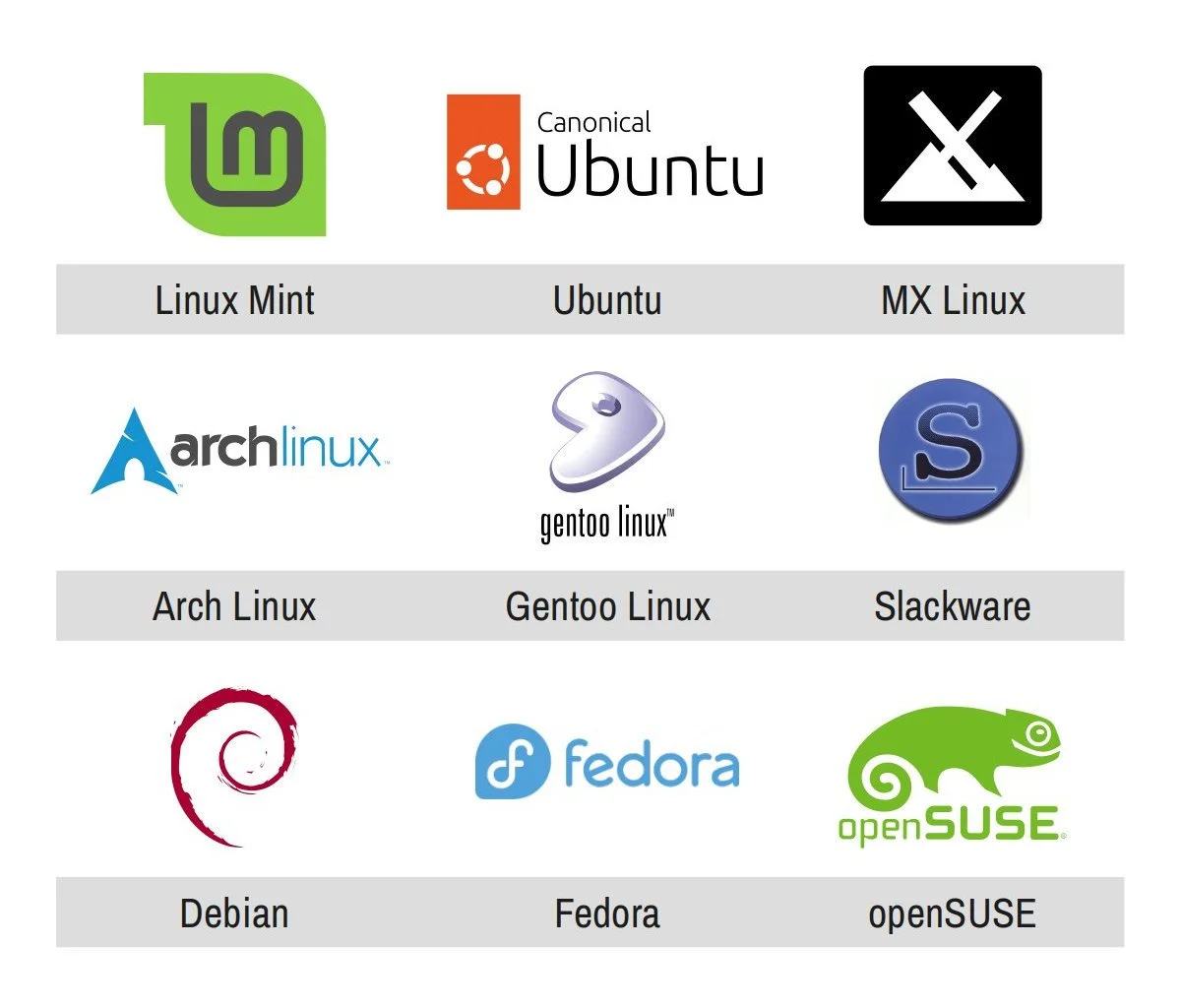
Graphic showing the logos and titles of nine Linux distributions: Linux Mint, Ubuntu, MX Linux, Arch Linux, Gentoo Linux, Slackware, Debian, Fedora, openSUSE

How do you choose a Linux distro?

There are hundreds, if not thousands, of blog posts, articles, and videos on how to choose a Linux distro that’ll work best for you.

Here are two good articles:

And if you’re already familiar with Linux, here’s an excellent interactive guide (available in 19 languages, no less!) that walks your through the process:

Most of these resources ask you to consider a bunch of factors that will help you create a short list of distros to try.

Narrowing down the list of suitable distros

I used a combined list of those decision-factors to add and remove distros from my eventual shortlist.

My level of experience with Linux: intermediate-to-advanced. I have enough experience with Linux that I am comfortable diagnosing issues and looking/asking for help. This let me keep specialised and potentially complicated distros in my list.

Effort I want to make in building and maintaining my system: low-to-medium. Even though I can, I don’t want to do lots of tinkering and exploring with my operating system (OS). I just want my OS to disappear into the background while I do other things. Because of this, I removed most specialised and complicated distros from my list.

Package management preference, if any: ideally, APT. This let me remove all Arch-based distros from my shortlist, for example (though that was partly also in response to the effort question, above).

Operating system look-and-feel (eg for people new to Linux, we ask: Windows-like or Mac-like?): Windows-like, though highly customisable. Basically, I wanted to use KDE Plasma as my desktop environment. I kind of also didn’t have a choice because, unlike GNOME and Cinnamon, KDE does an actually good job with fractional scaling (eg scaling the whole screen up to 125%) and I needed this functionality for my laptop. [1]

Hardware compatibility requirements (especially if you have much older or much newer hardware): mixed. My desktop computer is only a year old, with an NVIDIA RTX4080 graphics card, so I needed a distro that could support recent hardware. This removed a bunch if distros from contention. My desktop is also attached to an ultra-widescreen monitor that supports high dynamic range (HDR) colour. I was hoping to find a distro that could take full advantage of this capability but, sadly, that was not to be and I’ve had to switch my monitor to its standard dynamic range (SDR) mode. My peripherals, on the other hand, are either older or more readily compatible with Linux so none of those were an issue. Finally, I wanted to run the same distro on my desktop and my laptop, but my laptop is an older (2021), refurbished Lenovo ThinkPad so that was never going to pose any compatibility issues.

Software compatibility requirements (only really relevant if you’re a gamer, coder, multimedia creator, or other type of specialist user; or someone with specific accessibility requirements): gamer/multimedia creator. I wanted the ability to play games through Steam (nothing very new or resource-intensive) and the ability to do multimedia editing (audio, video, photography). I didn’t need a gaming- or multimedia-focused distro to do all this though, so these requirements didn’t add or remove anything from the list.

Default software preferences: none. I’m happy to install all the software I need (ie I don’t need my distro to pre-install anything for me), so this preference didn’t add or remove anything from the list either.

Distro community size (aka your potential tech support needs, because larger and more well-known distros tend to have more users, a wider install base, and more online answers to questions you might have along the way): medium-to-large. Because my desktop hardware is relatively new, I knew I’d need a bit of support for it, so I wanted a more tried-and-true distro. This eliminated a bunch of smaller distros. Though, as luck would have it, I’d end up eliminating almost all the super-popular distros for other reasons. Oh well.

System stability (which basically boils down the the choice between a super stable OS or one that gets more frequent OS and software updates): more stable than not. I like using the latest and greatest software and hardware, but I don’t need to do so. And while I didn’t particularly want to be on an Long Term Support (LTS) release schedule, which is typically on a two-year cycle, I also didn’t want to be on a rolling release, in which new features added as soon as they’re stable enough.

FOSS ideological preferences: no strong preference. I prefer to use free and open-source (FOSS) software over proprietary software whenever I can, but I’m perfectly happy to use proprietary software as well.

Big-tech ideological preferences: avoid big-tech as much as possible. I’m trying hard to stay away from “big tech” as much as I can – that term being relative in the Linux world. I don’t like larger companies that enshittify their products or try to throw their weight around in the community. This basically meant avoiding Canonical, and therefore all flavours of Ubuntu, and IBM-owned Red Hat, which makes only enterprise versions of Linux so none of their products were in contention anyway. (openSUSE is the only large tech company in the Linux space that I like.)

Willingness to pay: happy to. Almost all end-user Linux distros are free, but a couple charge an optional small amount to help fund their development and I’m someone who regularly provides financial support to the software and online services that I use. So when I came across a Zorin OS Pro – a very polished, very Windows-like distro that charges an optional one-time payment of AUD $78 – it jumped to the top of my list before being quickly eliminated because it uses GNOME and not KDE. Oh well.

Privacy preferences: consumer-level strict. Most Linux distros offer great privacy, but a handful connect to third-parties or collect telemetry data, meaning they have the ability to track how you’re using your computer. I absolutely do not want to use technology that tracks me, but I’m also not a privacy nut – meaning I’m not going to use Tails or Kali Linux, which I would say are “professional-level strict” with their privacy and security. This basically just meant that I eliminated all the distros created by Canonical.

Creating my shortlist

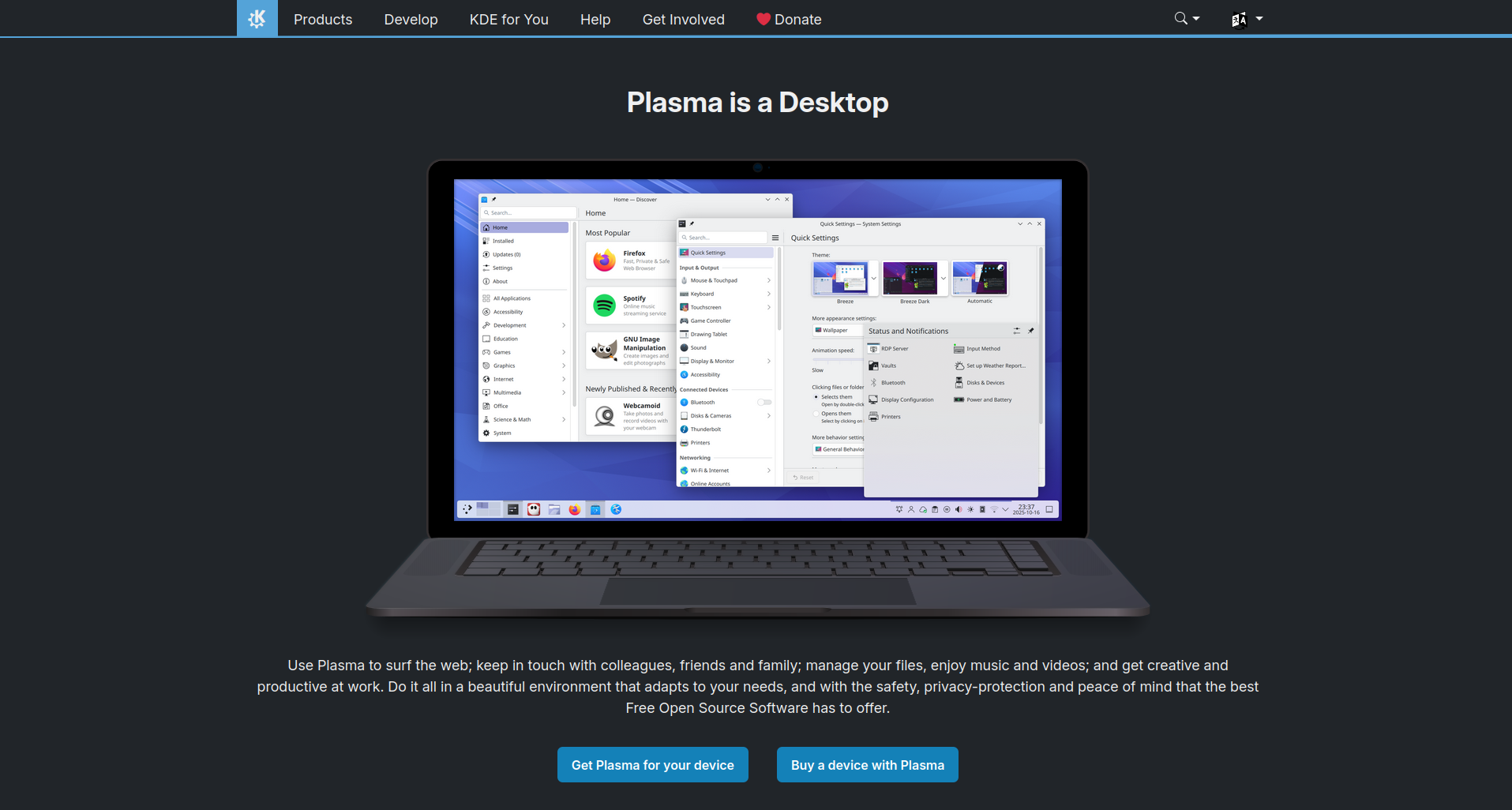
Since the KDE Plasma desktop environment is such a foundational part of my requirements, I first searched for the most recommended KDE-based distros [2] and came up with this initial shortlist – though each entry came with caveats:

  • Kubuntu. Kubuntu is a Canonical product so I couldn’t use it out of the box. I’d have to run some post-install scripts to get rid of snap package support and Canonical’s telemetry.

  • TUXEDO OS. This distro is made for TUXEDO branded computers but the OS itself can be installed on other computers as well.

  • openSUSE Tumbleweed. Tumbleweed is a rolling release, but it is a very stable one so I’m okay with that. However its package manager is Zypper (which uses RPM packages) and not APT (which uses DEB packages) so that’d be a bit of a compromise.

  • Fedora KDE. Fedora has a fixed release cycle (updated every six months) and uses the DNF package manager (which uses RPM packages) so not exactly what I was after. Also it doesn’t have great support for newer hardware and proprietary software. But this is a distro I used for many years on my old laptop, so it’s something I’m quite familiar with.

My initial shortlist was concerning because the first distro is created by Canonical (which I’m trying to avoid) and the last two distros use RPM packages (which some of the software I want to use doesn’t have support for), leaving me with just a single option – which isn’t a short list as such.

So after searching for more recommended KDE-based distros, and then going through the long list of factors above and slightly relaxing one or two of my requirements (ie allowing for less well-known and less frequently-updated distros), I added two other distros to my final shortlist:

  • Nitrux OS. Nitrux has a smaller install base and is based on Debian.

  • MX Linux. MX has a medium-sized install base and is also based on Debian.

The cool thing with both distros is that they’re based on Debian and not Ubuntu. There are many, many Debian guides and resources out there so, even if I couldn’t find a specific Nitrux OS or MX Linux guide for any issue I might have, there’s a good change I’d find a Debian-specific guide instead.

Oh, and before you ask: I didn’t shortlist Debian itself because of its slower, two-year release cycle. I wanted something with at least slightly more frequent releases, which MX Linux has with its point releases.

Photo of the silhouette of a person wearing a hoodie sitting in a dark room in front of several flat screen monitors that are displaying colourful lines of software code and text

Photo by Kevin Horvat on Unsplash

Testing my shortlist

The cool thing with Linux is that you don’t have to rely on other people’s opinions on which distro will work best for you.

Yes, you can watch a tonne of review and comparison videos, but you can – and you should – just run each distro off a “live USB” (aka bootable USB) and try it out for yourself.

You can then install all your distros – either one after the other or in all of them parallel on the same computer or same live USB – and play around with them for a bit before committing to the one you like best.

So that’s what I set out to do.

Happily (or unhappily, depending on how you look at it) just the live-USB step eliminated three of distros:

  • Fedora KDE wouldn’t even boot! I installed its bootable ISO to multiple USB sticks using different installers (Fedora Media Writer, balenaEtcher, and Rufus). These USBs booted-up just fine on my laptop, but none of them worked on my desktop. I don’t know what the hardware compatibility issue was, but I didn’t want to spend time figuring it out.

  • TUXEDO OS booted up properly, but it ran slowly and kept crashing – likely another, though different, compatibility issue with my desktop hardware.

  • openSUSE Tumbleweed booted, but it didn’t recognise my screen’s resolution and the OS installer wouldn’t launch from within the live USB. This didn’t give me much confidence in its ability to run on my desktop’s hardware.

As for the rest:

  • Nitrux OS I eliminated because it is planning to drop KDE Plasma in the future. I never even ran its live USB version.

  • Like Fedora’s KDE “spin”, MX Linux’s KDE version also didn’t boot. But I was told it was easy enough to install its flagship Xfce version and then just switch to KDE afterwards, so I didn’t immediately eliminate this option.

  • Kubuntu booted up easily and worked flawlessly. But I knew that if I was going to use it, I’d have to rip out its guts and modify how it worked. And, honestly, I didn’t have the energy to do that. I’d wanted my OS installation and maintenance to be easy, remember? So while I mostly-eliminated this option, I did keep it as last-resort compromise if literally nothing else worked.

Desktop wallpaper graphic depicting a forest and mountain range in which the MX Linux logo has been incorporated into mountains shown in the background

Getting MX Linux to work

To recap, after my initial round of testing and elimination, MX Linux was the last distro standing and I was determined to make it work for me.

So I installed the Xfce desktop version of MX Linux and, lo and behold, it worked perfectly and installed without a hitch. I immediately installed the KDE desktop on top of this, and that installed just fine too. Success!

But then I restarted my computer and it wouldn’t boot, screeching to a halt at the same spot in the boot-up process where the MX Linux KDE live USB crashed. Great.

The irritating thing was that the MX Linux KDE distro worked beautifully on my ThinkPad laptop, and even on my older gaming laptop with an NVIDIA GPU, so I knew the issue was with my desktop’s relatively newer hardware.

It took a couple of hours, but I finally figured out the problem: my desktop’s hardware absolutely does not support SDDM, the Simple Desktop Display Manager that launches the log-in screen. MX Linux’s Xfce desktop environment worked perfect because it uses the LightDM display manager. When I’d installed KDE on top of MX Linux earlier, I’d been given the option to switch display managers to SDDM and, since SDDM is the recommended display manager for KDE, I had said yes. *sigh* [3]

So I reinstalled MX Linux with Xfce, reinstalled the KDE desktop, but this time did not switch away from LightDM. And everything worked!

That’s where I am now: running MX Linux with the KDE Plasma desktop environment. Yes, the KDE Plasma that comes with MX Linux is the older 5.27 version (compared to its current 6.4 version) but everything runs beautifully and I’m loving my set-up!

MX Linux with a KDE Plasma desktop running on my computer with an ultra widescreen monitor (3840×166px).

Keeping MX Linux running

Has it been smooth sailing with MX Linux over the last few months? For the most part, yes! I haven’t wanted or needed to switch back to Windows 11 even once.

In fact, the Windows software I thought I’d miss the most works perfectly well on my set up via Wine (a Windows emulation layer that you can “install” Windows software in Linux).

The only issue I’ve had is with Linux software that relies on the systemd initialisation system to set things up. MX Linux doesn’t use systemd any more, though you can switch to its systemd version at boot time, if needed. But that’s okay, it was easy to find alternative software that didn’t rely on systemd.

It did, of course, take a while to get everything set up the way I like. But I took extensive notes and kept a detail log of every bit of software I installed and every configuration change I made, so I’ve been able to replicate this set-up on my laptop as well. Now my system is running exactly how I want it to on both computers.

To keep things fun, I did install openSUSE Tumbleweed on my older gaming laptop and I’m having fun playing around with that set-up – especially since that does have the latest version of KDE Plasma installed.

What next?

So what’s next in my desktop Linux journey? Not much on the OS side, actually. (Though I do want to keep playing around with openSUSE on my older laptop.)

All the work I need to do is on the software side, and that’s mainly finding Linux alternatives to Windows software and then using these alternatives till I’m as proficient as I was before I made the switch.

It did take me a while to figure out my new file storage, back-up, and cloud-sync strategy though, but I’ll talk about all that in future blog posts :)

For now I’m just going to enjoy doing things on my computer while the OS fades into the background without spying on me and tracking my every move. Woohoo!


[1] I wanted to use the same distro on my desktop and my laptop. I had Linux Mint installed on my laptop for the longest time, but Cinnamon’s poorly-implemented fractional scaling was really starting to grate on me me so I’d gone back to 100% scaling. (When I scaled my screen up to 125% or 150%, YouTube videos wouldn’t play properly and playing those videos would max-out CPU resources.) I really like Linux Mint and would use it everywhere if I could, and since it’s basically a version of Ubuntu without all of Canonical’s crap shoved into it, it works perfectly on all my hardware. The only thing that stops me from using Linux Mint is that it no longer supports KDE. It now comes with its own Cinnamon desktop, which is based on GNOME. Yes, you can install KDE on Linux Mint afterwards, but I’d much rather use a distro that supports KDE officially.

[2] In case you’re wondering, these were the most-recommended KDE distros that I eliminated straight away for various reasons: KDE Neon because it isn’t particularly stable, nor is it meant to be; KaOS because it’s a rolling release, which I’d rather not use; and CatchyOS, EndeavourOS, Garuda Linux, and Manjaro because they’re all based on Arch.

[3] Fedora uses the SDDM display manager, which is potentially why its live USB never even booted on my desktop. ¯\_(ツ)_/¯

Switching (mostly) to Linux

Three months ago I wrote about how, for my personal use at least, I’ve changed office suites, moving from Microsoft Office to LibreOffice.

I’ve now made a corresponding change to my primary desktop operating system, moving from Microsoft Windows to Linux – specifically from Windows 11 to MX Linux with the KDE desktop environment.

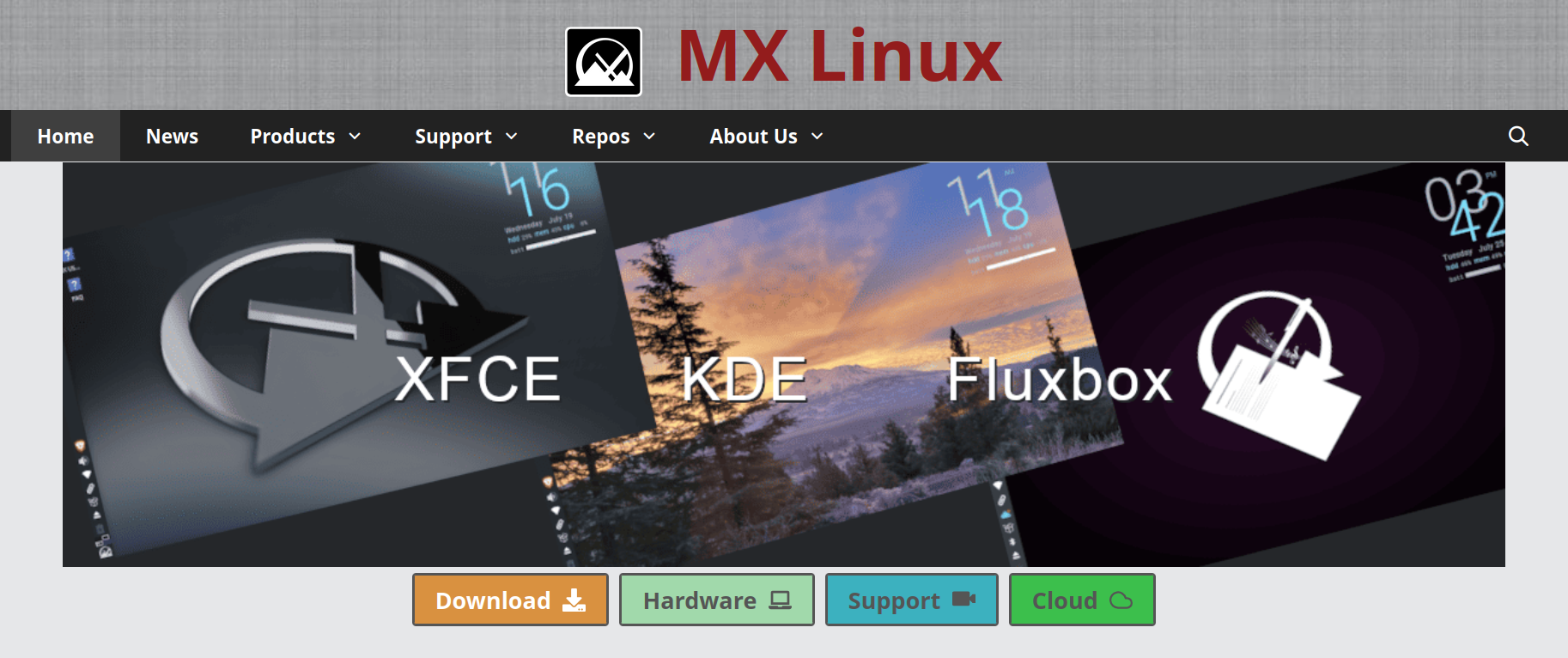
Screenshot of the MX Linux website homepage

Why the change?

My reasons for the switch are pretty straightforward: I am increasingly unhappy with the decisions Microsoft is taking around Windows.

For example:

  • I’m tired of having unwanted large language model (LLM) chat interfaces and other artificial intelligence (AI) functionality integrated into Windows and Microsoft software with no ability to opt-out or turn this functionality off.

  • I’m wary of the telemetry that Microsoft adds to its products and the monitoring it does of all its customers.

  • I’m exhausted by the constant tinkering and unasked-for “improvements” Microsoft keeps making to its operating system (OS), giving their OS no chance to settle and stabilise.

Overall, I’m angry about big tech’s technology lock-in and the ongoing enshittification of their products and services.

Why Linux?

Fortunately, Linux [1] takes a far different approach from Microsoft.

For example:

  • Linux is mostly community driven and its developers are much more open to feedback from users.

  • There are many competing implementations of the Linux operating system – meaning there a great many Linux distributions to choose from – so it is difficult for any single group or organisation to lock-in its users and then enshittify its products and services.

  • Modern Linux is surprisingly user friendly, which makes it relatively easy for most people – even power users – to switch to this as their primary OS.

That said, it helps that I’ve been using UNIX and Linux for almost 30 years [2], so the idea of moving my life over to Linux was a lot less daunting to me. Quite the opposite, in fact, since I’ve really enjoyed the process of learning and experimenting as I’ve made the move :)

What now?

I’ve almost completely migrated my day-to-day computing life over to Linux and, over the next several weeks, I plan to write posts about:

  • Why I picked MX Linux over other Linux distributions

  • How I’ve had to reorganise the way I store, sync, and back up all my data

  • What steps I took to make the switch from Windows to Linux

  • What I’ve learned about specific Linux applications along the way

For now let me just say that I’m super happy with my move and I’m really enjoying my computing life right now :)


[1] Or GNU/Linux, if you want to get into that naming controversy!

[2] My earliest experience (circa 1996) was with IBM AIX, FreeBSD, and Red Hat Linux. Since then I’ve tried many, many, other distros, with Fedora (KDE desktop), Linux Mint (Cinnamon desktop), and openSUSE Tumbleweed (KDE desktop) being my favourites.